
Save documents directly to the correct folder
Change the default location Word uses to save documents. This can save dozens of mouse clicks per day.
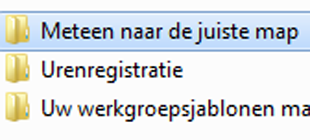
Without realizing it, you may perform unnecessary steps every day when saving Word documents. Since Word doesn’t know how your computer or network is set up, it uses a default save location after installation.
Instructions
- Open Microsoft Word 2007
- Click the Office button

- Click Word Options

- Go to Advanced

- Scroll down (near the bottom)
- Click File Locations
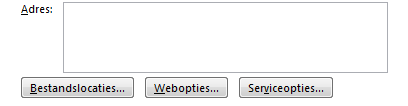
- Select the line labeled Documents
- This is usually set to C:…….

- Click Modify

- Select the folder where you usually save your files
- In companies, this is often a central drive shared by the company or department

- Click OK

- You’ll return to the file locations window
- Click OK again
- You’ll return to the Word Options window
- Click OK here as well
- Close Word to finalize the settings
Save As to correct location
When creating a new document and selecting Save As (Word shortcut: F12), Word will suggest the folder set as the default save location. Of course, you can always choose a different folder.