
Schedule Email Delivery (Outlook 2010)
Most email messages are sent immediately. In some cases, however, you might want to decide yourself when the email should be sent.
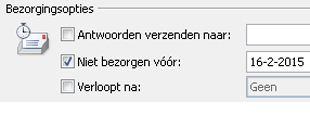
For example, the day before a workshop or meeting. You can include the start times and possibly directions in that message. In such cases, schedule the delivery date and time in advance. That way you won’t forget, and everyone receives the message on time.
How to Schedule an Email in Outlook
- Create your email message as usual
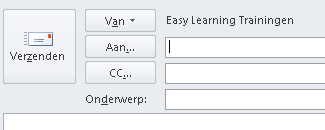
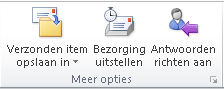
- Click the Options tab

- In the More Options group, click Delay Delivery
- Under Do not deliver before, specify the date and time
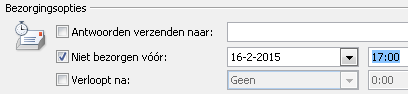
- Click Close
- Click Send
- The message will remain in the Outbox until the scheduled delivery time
NOTE
If you’re working on a standalone PC, it must be turned on at the scheduled send time. If you’re using a mail server (like Exchange), the server will handle the delivery.
When Is This Useful?
In any situation where you already know what to write in the email, but you don’t want the recipients to receive it yet.
- For events and invitations
- Follow-up emails after events
- Press releases
When Not to Use This Feature
I’ve seen people use this feature to send emails “very late.” Just know that in the background, it’s still visible when the email was actually created. So if you’re trying to impress a manager, you’ll need a different trick.