Send a Digital Business Card with Outlook
Business cards are exchanged daily. Avoid the hassle of retyping information — it’s time-consuming and prone to errors. Send and receive digital business cards that are automatically added to your Outlook contacts.
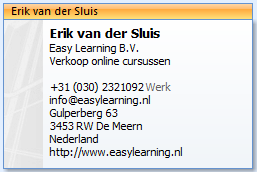
Make a great impression with your (new) clients
- Create a contact with your own details
- Save it in a separate folder within your Contacts
- Send the digital business card to your new contact
- The recipient double-clicks the business card
- Outlook adds the contact to their address book
- This saves time and leaves a professional impression — especially for potential clients
- Even in personal situations, people appreciate the gesture
Instructions: Create a digital business card
This process consists of three steps:
- Create your own contact
- Send the contact information
- Receive contact information
Step 1: Create your own contact
- In the Address Book, create a contact with the details you want to share
- If you don’t want to include your mobile number, simply leave that field blank
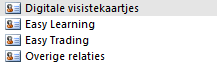
- Save the business card in a separate folder within Contacts, for example: Digital Business Cards
TIP 1
You can store multiple digital business cards in this folder.
TIP 2
Be sure to include your website so recipients can click directly through.
Step 2: Send your contact information
- Select your contact in the Address Book
- Open the contact details
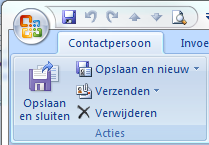
- From the ribbon, click Contact → Forward
- A menu appears
- Select As Business Card
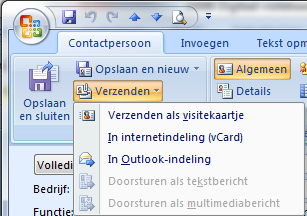
- Outlook opens a new email with the business card attached
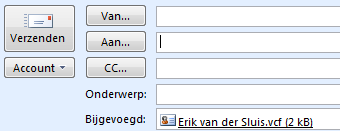
- Choose the recipient by clicking “To” or manually enter the email address
Step 3: Receive contact information
Of course, this method can also be used to receive contact details from others. Adding them to your contacts is simple.
If you receive an email with contact details, it appears as a message with an attachment. Like with any email, only open attachments from known senders.
- Open the email
- Double-click the attached vCard
- Depending on your settings, it may appear in the message or as a separate attachment
- The contact window will open
- Click Save & Close to store it