
Send files using we transfer
Send Files Using WeTransfer
Sending photos by email often causes an error or the email bounces back. The solution is simple: place the photos in a ZIP file and send them using WeTransfer.
Put All Photos in One Folder
-
- Copy all photos you want to send into a folder on your computer.
- Navigate to the folder with the files.
- Copy the files into a new folder that will contain all the files to be sent.
- Make sure to copy, not move, the files so the originals remain intact.
- TIP: In File Explorer, you can select and copy multiple files at once. Hold down the CTRL key while selecting to select more files.
- Right-click and choose >> Copy (CTRL+C).
- Go to the folder where the files should go, right-click, and choose >> Paste (CTRL+V).
- The new folder now contains all the files to be sent.
- If the files were already in a folder, you can skip this step.
Create a ZIP File
-
- Go to the location of the folder with the files.
- In our example, the folder is named >> Vacation Photos France.
- Right-click on the folder name.
- Choose >> Send to.
- Then select >> Compressed (zipped) folder.
- Windows will now create a ZIP file that contains all the files.
Send Using WeTransfer
- Go to >> www.wetransfer.com
- To use WeTransfer, you must accept the terms.
- Click Accept to proceed.
- A window will open to upload your file.
- Click >> Add your files.
- File Explorer will open.
- Select the file you want to send.
- Click Open.
- Enter your email address and the recipient’s email address.
- Optionally, enter a message.
- Click the >> Transfer button.
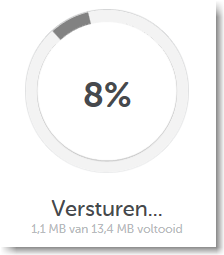
- WeTransfer will show the progress and a confirmation when the transfer is complete.
- The recipient will receive an email with a download link for the files.
- You will receive a confirmation that the files were successfully sent.
- Afterward, delete the temporary folder and files from your computer to avoid duplicates.