
Set default font in Word
Apply the same font to all new Word documents. Here’s how!
To ensure your Word document is properly formatted, you should use styles (formatting profiles). A Word template specifies exactly how each type of text should appear.
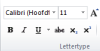
Issue in Word 2010
Word 2010 uses the Calibri font by default. It’s a decent font, but not suitable if your company’s branding requires a different one.
Set the default font for new documents
When you launch Word, a blank document appears. But that blank screen isn’t really empty. The font, background color, margins, etc. are already set—it just has no content yet. When Word opens, it uses the default template (Normal.dotm). By setting your preferred font in this template, every new document will automatically use that font.
Instructions
- Click the Home tab

- Go to the Styles group
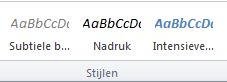
- Open the Styles pane (arrow in the bottom-right of the Styles group)

- A list of styles appears on the right
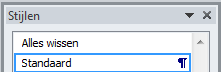
- Select the Normal style
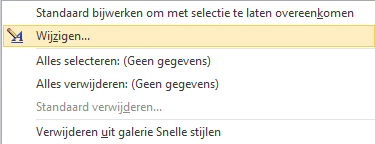
- Right-click the style
- A menu opens
- Select Modify
- In the Formatting section, you’ll see the default font
- In Word 2010, this is often Calibri 11

- Change the font and size to your preferred choice

- Select the option New documents based on this template
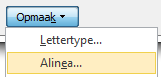
- Click Format

- Choose Paragraph
- Word 2010 sets Calibri with 1.15 line spacing and 10 pt after each paragraph
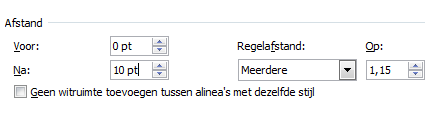
- Adjust these settings as you wish. For standard text, spacing before and after is often set to 0 pt.
- Set line spacing to Single
- Click OK to confirm
- Click OK again to confirm the font settings
