
Setting Trusted Senders
Spam filters are great, but what if an unwanted sender keeps ending up in your spam folder?
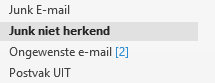
If a certain sender keeps being placed in the Junk Email folder and this is not intended, you can add this sender to the list of trusted senders.
Multiple options
In our example, we use Outlook combined with ESET Internet Security. However, other anti-spam programs work in a similar way.
Method 1: Set trusted sender
- Open >> Microsoft Outlook
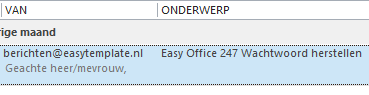
- Select (do not open) the email in your >> Inbox
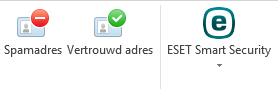
- Select the tab >> ESET

- Choose >> Trusted address
- The sender is now added to the list of trusted senders
Method 2: Set trusted sender
When you are cleaning your Junk Email folder or have opened an email in another way, you can also add the sender directly to trusted senders from that screen.
- When the email is opened, the tab >> ESET will also be visible
- Select this tab

- Choose in this screen >> Trusted address
Video instruction
Practical example
A practical example from our own experience may clarify what type of emails this concerns. We send login codes for our products (leave registration, time tracking, etc.), but these emails often end up in the Junk Email folder.
Advertisement: ESET for Outlook

ESET Smart Security has again been voted best product by the Consumers’ Association.