
Set up headings in Word
Make sure all headings are linked to the appropriate higher-level style. For the top-level style (usually Heading 1), ensure that it is not based on any other style.
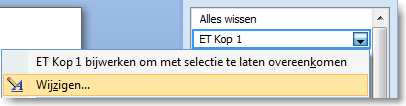
Modify Heading 1
- Open the Styles list
- Right-click the style and choose Modify
- Under “Style based on”, select “(no style)”
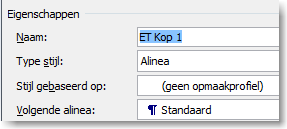
- For Heading 2, set it to be based on Heading 1
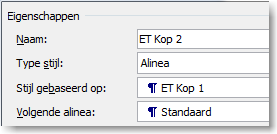
- Repeat this process for all 9 heading levels you plan to use
- Also, set the left indent and first line indent to 0 for all heading levels. This will be managed through the list style
- We applied these settings in Example 2A
Steps to Follow
This procedure involves several steps and is intended for users who have more experience with Word or are familiar with working with Word templates.