
Set Up Numbering for Levels 2 to 9
Set Up Numbering for Level 2
- Select level 2
- Remove all formatting under >> Enter formatting for number
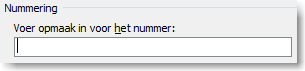
- In our example, we want the numbering to continue from the previous level
- To do this, under >> Include level number from, choose level 1
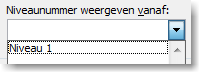
- A “1” now appears in the formatting field
- Type a period after the 1
- Under >> Number style for this level, choose >> 1, 2, 3, …
- The formatting now displays 1.1
Set Up Numbering for Levels 3 through 9
- Repeat the same process for level 3 and beyond
- Under “Include level number from,” first select level 1, type a period, then select level 2, and type another period
- Under >> Number style for this level, choose >> 1, 2, 3, …
- Each subsequent level will add one more step
- Be sure to follow all these steps for each level
- The dialog box now shows all levels with the corresponding styles
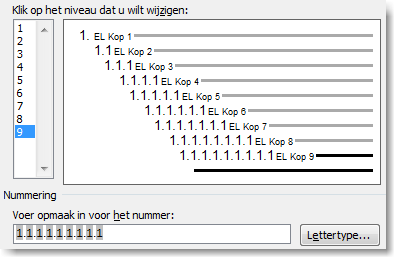
Steps to Complete
This procedure includes several steps and is intended for users who are experienced with Microsoft Word or familiar with working in Word templates.