
Show All Formulas in Excel
Check the formulas in your Excel worksheet. Display the formulas instead of the results.
Show formulas in worksheet
Working with formulas in Excel offers many advantages, but there’s also a downside. When opening a worksheet filled with formulas from someone else, how can you be sure all formulas are correct? Selecting each cell individually is inefficient. Fortunately, there’s a function to display all formulas on screen at once.

Sample file
This example shows a worksheet overview containing several totals. The expectation is that if any values change, the totals will automatically update. But are the formulas entered correctly?
Practical example
I once received a sheet where someone had calculated the totals using a calculator. Understandable, since they didn’t know the formulas. So you can’t always assume everyone has the same level of Excel knowledge.
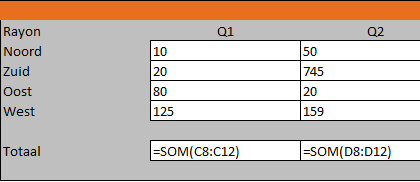
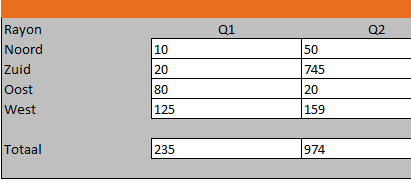
The image above shows which cells contain formulas and which ones are filled manually. Of course, this function isn’t only used to check if formulas are present, but also if they’re correct.
This feature via the Excel menu
- Go to the tab >> Formulas

- Go to the group >> Formula Auditing
- Click on >> Show Formulas
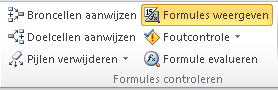
- Clicking on Show Formulas again will return the view to normal.
Shortcut for this feature – CTRL + T
Pressing CTRL + T (the grave accent key) will make all formulas in the worksheet visible.
Normal view
Press CTRL + T again to return to the normal view.