Subfolders Empty After Importing PST in Microsoft 365
After importing the mailbox, the subfolders are visible under the Inbox, but they appear empty.
In most cases, this is caused by insufficient permissions, but it can also be due to a view filter. You may see at the bottom of the window >> Filter applied.
How to set the view of a folder
- Select the folder that shows no or only some messages
- In the menu, choose >> View

- Choose >> Change View
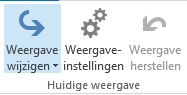
- Change the view
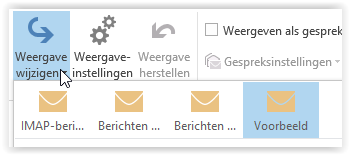
- Once you have selected the correct view and all emails are visible, you can apply this view to all other folders
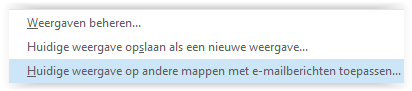
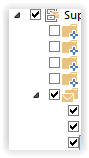
- Then select the folders you want to update