
Track changes in Excel
Tracking changes is widely used in Word, but in Excel it remains one of the many overlooked features.
Enable Track Changes in Excel
- Open the Excel workbook
- Select the tab >> Review

- Go to the group >> Changes
- Click on >> Track Changes

- Select >> Highlight Changes
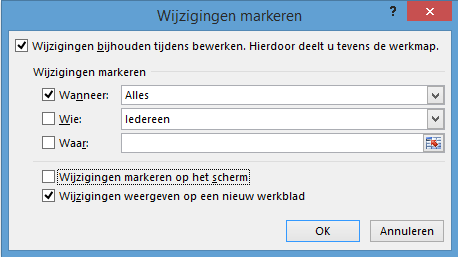
- You can choose to display changes directly in the cells or on a separate worksheet
- We recommend using a separate worksheet for clarity
- Click >> OK to confirm
- Changes will now be tracked
What Counts as a Change?
- Changing the content of a cell
- Changing a formula (the formula itself)
- Every change is tracked—if a cell is edited twice, both changes will appear in the log
Which Changes Are Not Tracked?
- Formatting changes in a cell
- Hiding and unhiding columns
- Hiding and unhiding rows
- Adding, editing, or deleting comments
- Changes in formula results are not tracked since the formula itself hasn’t changed—only the output has
Retention
- Excel saves the change history for 30 days by default
- This 30-day period can be adjusted—explained in a separate article
Accepting or Rejecting Changes
Once changes have been logged, they can be accepted or rejected—either one by one or all at once.
- Open the worksheet
- Go to the tab >> Review
- Go to the group >> Changes

- Click >> Track Changes
- Select >> Accept or Reject Changes
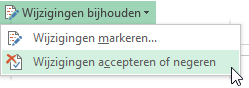
- Select which changes you want to review
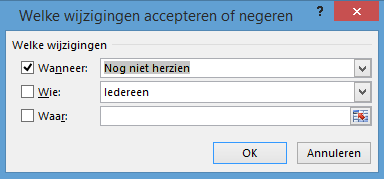
- Excel will now show changes one at a time
- Each change displays who made it, when, and what was changed

- Click accept (or reject) and review each change
- You can also accept or reject all changes at once

- Finally, save the document again