
Transpose switch columns and rows in Excel
Some Excel features go unnoticed until you need them. You may never think to search for their name in the Help menu. One such feature is Transpose.

Switching rows and columns using Transpose
- Suppose you have a list of data in Excel
- You want to reuse this list in the same worksheet or another worksheet, but instead of being vertical, the data should appear horizontally

- Select the cells you want to copy
- In our example, that’s cell range B6 to B17 containing the months of the year
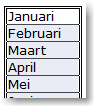
- Go to the Home tab >> Clipboard group >> Copy (CTRL+C)

- Select the cell where the transposed data should appear
- In our example, that’s cell D6
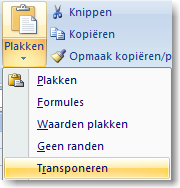
- Go to the Home tab >> Clipboard group >> click the dropdown under Paste
- Select >> Transpose
- The months will now appear in a horizontal row
Tip 1
- After copying, the original data remains intact, which isn’t always necessary. This action also works if you cut the data first (CTRL+X) and then paste it using Transpose.
Tip 2
- You can also right-click on cell D6 and choose >> Paste Special

- Then choose Transpose

Transpose a table with data
If there are data next to the list (in this case, months), you can transpose everything at once.
- Select the full range with data
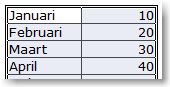
- Go to the destination cell for the transposed data
- In our example, that’s cell E20. The remaining steps are the same as copying a single row, but for clarity, they are repeated below:
- Go to the Home tab >> Clipboard group >> click the dropdown under Paste
- Select >> Transpose
- The data is now neatly displayed horizontally

IMPORTANT
Transposing does not work if the selected cells contain formulas.