
Vaste waarde uit ander werkblad
Prevent all kinds of direct references in Excel formulas. Provide a fixed value and a name, and use this in the formulas. This allows you to change a year or an interest rate in one place without touching the formulas.
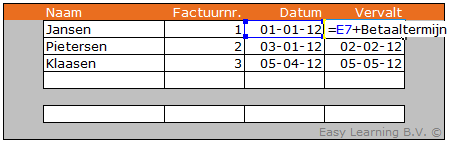
In formulas, besides references to other cells, fixed values from another cell are often used. Think of a 30-day term or an interest rate. If such a fixed value never changes, it is acceptable to include it directly in the formula. However, it is better to store this fixed value in a central location and refer to it in formulas. Then, if the payment term changes from 30 to 15 days, it only needs to be updated in one place.
Example files available
The following files are available for this section:
Example
Suppose you need to calculate the due date in an invoice list. The term is 30 days, so the formula could be “+E7+30”. Here, E7 contains the date.
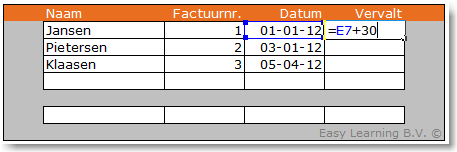
A more practical approach is to add a separate worksheet and store the 30-day payment term there. In our example, a worksheet >> Settings has been added. Because cell references shift when copying, we assign a name to the cell containing the payment term.
Procedure
- Add a worksheet >> Settings
- Enter the fixed value in a cell (D2 in our example)
- In our example, that value is 30
- Select the cell
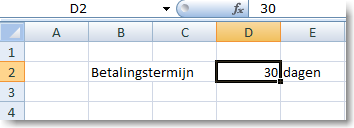
- The name box currently shows >> D2
- Select the name box and enter a description, for example PaymentTerm
- Press >> Enter
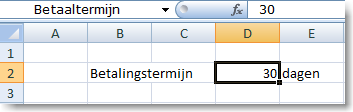
- The name box now shows PaymentTerm
- Anywhere the word PaymentTerm is now used in a formula, Excel will use the value from cell D2 of the Settings worksheet
- The formula in the invoice worksheet then becomes “=E7+PaymentTerm”
