
Set Exact Colors in Word
In Microsoft Word, you can choose from a set of standard colors. However, there is another option that allows you to define exact PMS or RGB colors. This ensures your document matches your corporate branding.
Convert text to RGB 234-110-31
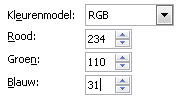
Easy Learning specifies in its corporate branding that orange text must be displayed as RGB 234-110-31. In the example below, we show you how to configure this.
How to set colors in Microsoft Word
- Select the text you want to apply a color to
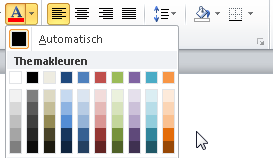
- Click the small arrow next to the font color button

- The color palette opens with the standard colors
- Under the standard colors, choose >> More Colors
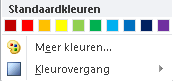
- A window appears where you can choose many colors, but this is rarely used.
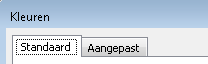
- Select the tab >> Custom
- Enter the RGB values here
- Click >> OK
- The text now uses the corporate color

Colors in Word templates
It can be a lot of work to do this for every heading. Of course, you can copy formatting, but it is much more efficient to use a template with styles. In a style, you set the color once for a heading, and it is applied consistently throughout your document.
If a color changes, you only need to update it once. This prevents you from having to go through the entire document to adjust colors.
YouTube video
A video is also available for this instruction.

Multiple locations
In Microsoft Word, you can set colors in many different places. This method works for almost all of them.
PMS to RGB
To define an exact color, Microsoft Word uses RGB (Red-Green-Blue) values.

If you receive PMS color codes, you can use various websites to find the corresponding RGB values. Simply search for “PMS to RGB”.