WordPress Summer and Winter Time
If you have problems scheduling messages after the switch to summer or winter time, this is the solution.
After the introduction of summer time, my messages were suddenly scheduled incorrectly. Well, not really wrong, because the PC did exactly what it was told.

Cause
By default, WordPress sets the time zone to UTC+0. In the Netherlands, this means your time is 1 or 2 hours off.
Solution and Procedure
Okay, so we know the problem, but how do we fix it? Very simple.
- Open your site in WordPress
- Go to >> Settings >> General

- Go to the section >> Time Zone

- Open the dropdown next to the time zone

- A list of time zones will appear
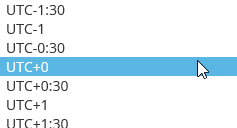
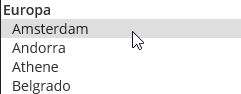
- Scroll up to find the city names
- Select >> Amsterdam
- Then click at the bottom of the page >> Save Changes

- You no longer have to worry about the transition between summer and winter time in WordPress.
- Even when winter time switches back to summer time, WordPress will automatically adjust the time.
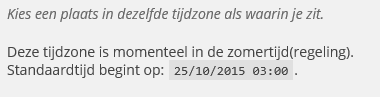
- WordPress will now also show when the next summer/winter time change is scheduled