Working with pivot tables
An Excel formula is best explained using an example. Download the example file below:
When transaction data is recorded in an Excel worksheet, there’s often a need for summary reports and data analysis. PivotTables make it easy to create cross-sections of your data.
PivotTables are especially useful when your list contains quantities and values. They are commonly used to analyze sales and revenue data. A PivotTable can help answer questions like:
- What is the total revenue per customer?
- How many units are sold per product category?
- What is the distribution across regions?
- Which salesperson performs best?
- And so on…
What are PivotTables?
With a PivotTable, you can analyze and summarize data from a table to gain insights. We’ll explain step by step how it works.
Components of a PivotTable
A PivotTable consists of a few main components:
- PivotTable Field List
- PivotTable Layout Areas
PivotTable Field List
This shows all column headers from your data table. By dragging fields into the layout areas, the PivotTable becomes visible and meaningful.

PivotTable Layout Areas
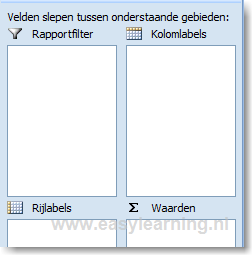
A PivotTable includes four layout areas:
- Report Filter
- Column Labels
- Row Labels
- Values
Report Filter
This allows you to filter the PivotTable by specific data. For example, to show only data for a specific region, drag the “Region” field into the Report Filter.
Column Labels
Use this area for fields you want displayed as columns in your summary. Avoid placing “Products” or “Customers” here to prevent creating too many columns.
Row Labels
For clarity, place frequently occurring data (e.g., customers) in the row labels. This helps keep the list readable with one entry per row.
Values
This area is used for numerical summaries. Typically, you’ll place fields here that contain quantities or monetary amounts.
Example Settings
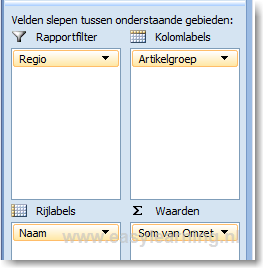
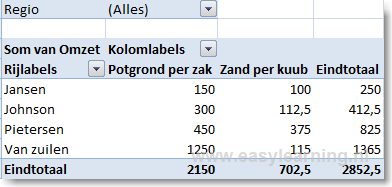
In the example below, a specific region is selected.
For the selected region, each customer is listed in a row, showing the revenue breakdown per product.